
Addressing your plant
Build the segment and prefix structure, bind addresses to real device ports, describe flows, and let the path check tell you what is not cabled yet.
The IP inventory is a join, not a list of addresses. Every row is one physical port on one device, carrying its equipment identity — device, slot, rack, RU, technical area — beside its network identity — address, prefix, VLAN, segment, flow role.
That is why it answers questions neither half could answer alone: which addressed ports are in rack 4, or which ports on this frame still have no address.
A port is network, unclassified, or not-network
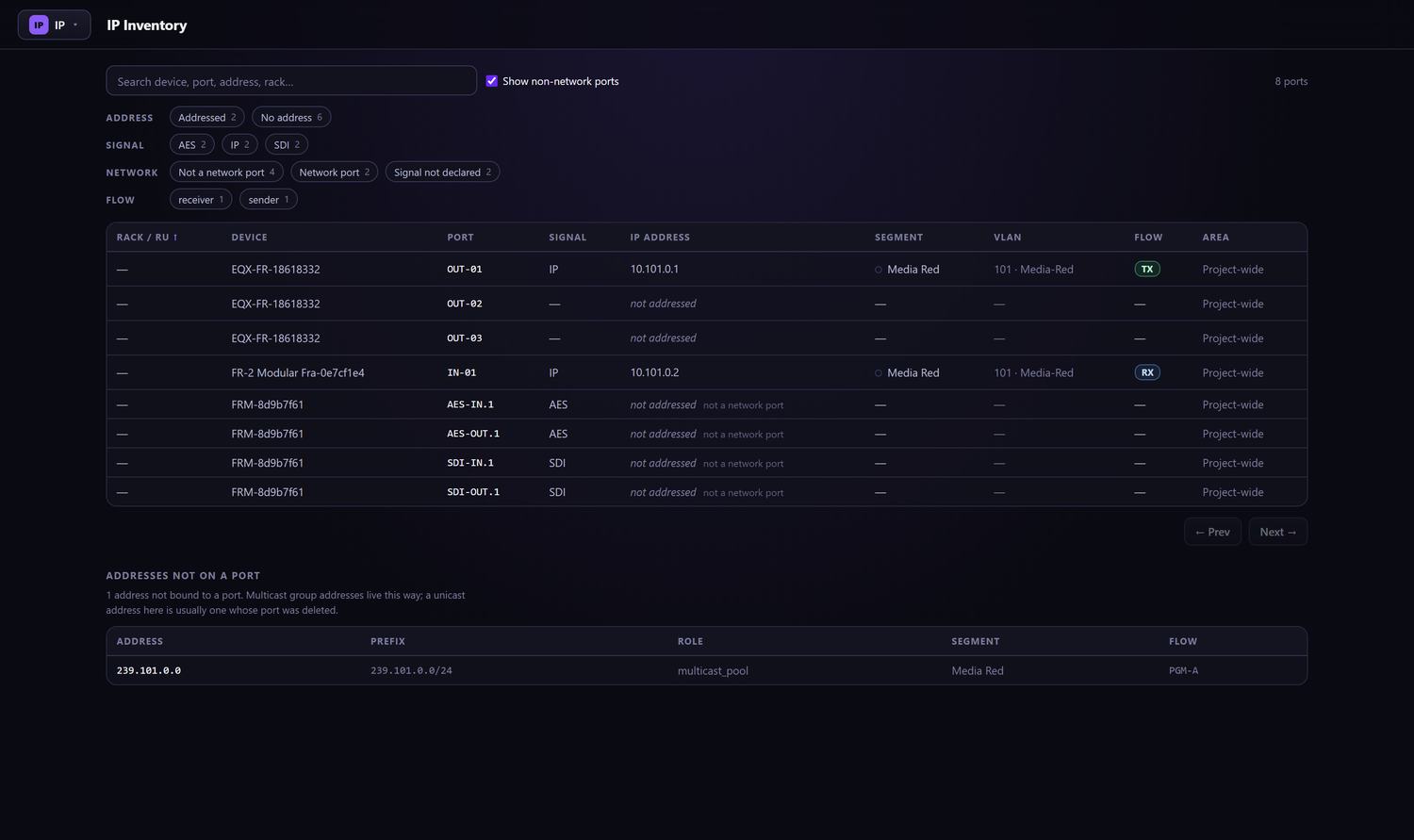
Addressing only applies to ports that are on the network, so Canvas classifies every port three ways rather than two. The third verdict is the one that matters: a port whose signal nobody has filled in yet is not the same as a port that is definitively not a network port.
| Verdict | Means | In the inventory | Can take an address |
|---|---|---|---|
network | Signal is a known IP transport, or the port declares a link speed | Listed | Yes |
unclassified | No signal declared and no link speed — a gap in the data, not a fact about the port | Listed | Yes, and it raises a finding |
not_network | Signal is declared and is not an IP transport — SDI, AES, analogue, RF | Withheld, and the count is shown | No |
The order is enforced, not merely suggested
You cannot allocate an address before a prefix exists, and you cannot describe a flow before a pool exists. Canvas refuses out-of-order work and names the next step instead of opening an empty panel.
| # | Object | Needs first | Gives you |
|---|---|---|---|
| 1 | Segment | — | A colour, a kind, a PTP domain |
| 2 | VLAN (optional) | Segment | A VID to hang prefixes on |
| 3 | Prefix unicast | Segment | Addresses for ports |
| 4 | Prefix multicast_pool | Segment | Group addresses for flows |
| 5 | Pool | A pool-role prefix | A named group range |
| 6 | Address | Unicast prefix + a network port | A bound port |
| 7 | Flow | Pool + sender port | A described stream |
| 8 | Receivers | Flow | Something for the path check to trace |
Where each job lives
The work splits across two pages, and the split is deliberate: you author on the drawing, where the plant is visible, and you audit in the table, where every port can be filtered and sorted.
| Surface | Use it to |
|---|---|
| Cable Diagram — IP layer | Create segments, VLANs, prefixes and pools; arm a prefix and click ports; draw flows; see segment tint and bandwidth heat on the plant |
| IP Inventory | Every port as a row; facet by addressed and network state; assign or release one port at a time; find what is missing |
1. Open the IP layer
Sign in with your work email. Canvas sends a one-time link, so there is no password to manage or rotate. Follow the link, then pick the project you are addressing: every segment, prefix and flow below belongs to exactly one project and is never shared across them.
Open the Cable Diagram. This is the equipment half — devices, ports and cables, the substrate that addressing binds onto.
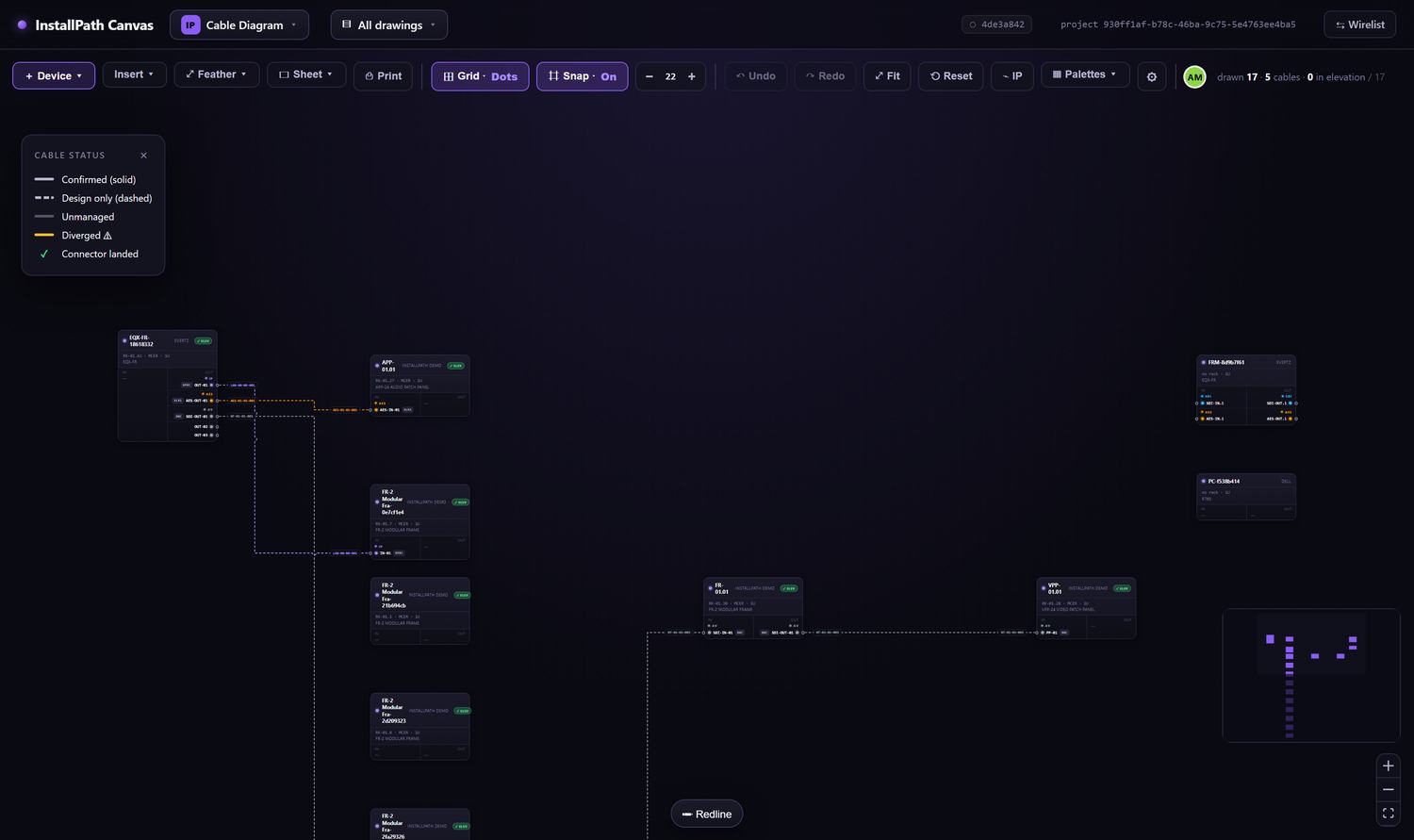
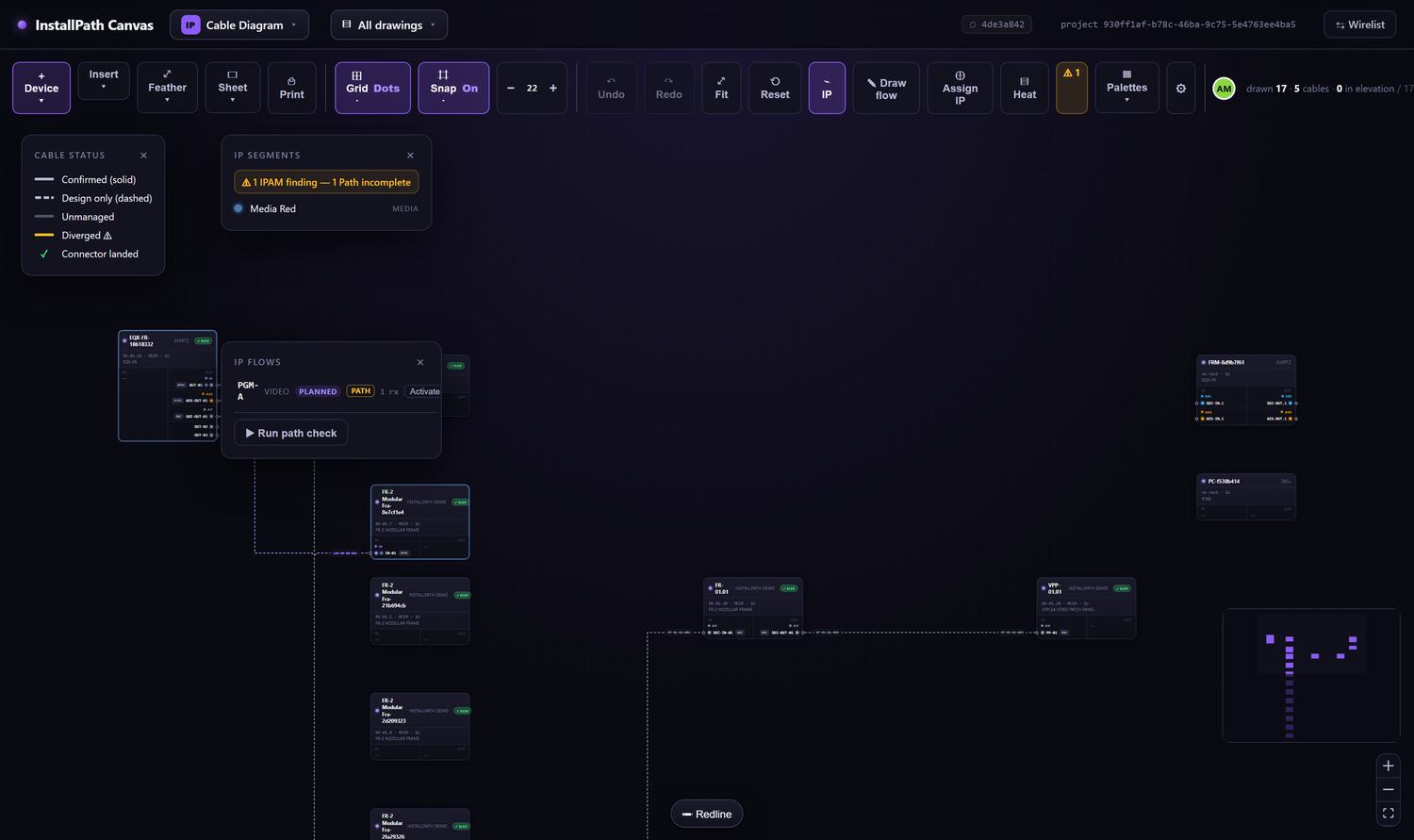
Turn on the IP layer with the IP toolbar button. It adds three tools — Draw flow, Assign IP and Heat — and docks the IP segments and IP flows palettes.
2. Create a segment
A segment is the top of the tree: a broadcast domain with a colour that tints ports and devices everywhere else on the drawing. Open Palettes ▾ → IP setup.
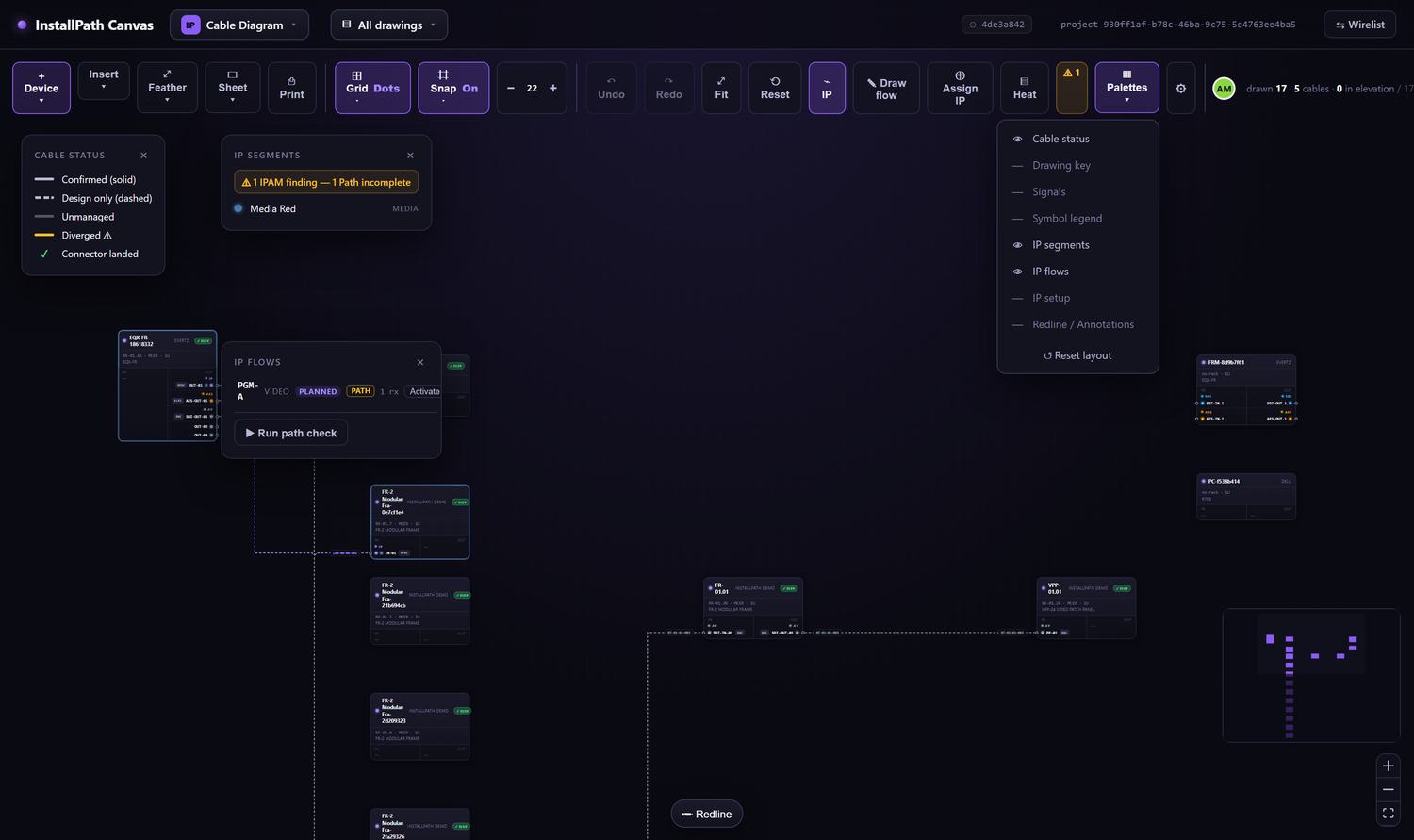
Every network object is created in this one palette, and the sections run in dependency order.
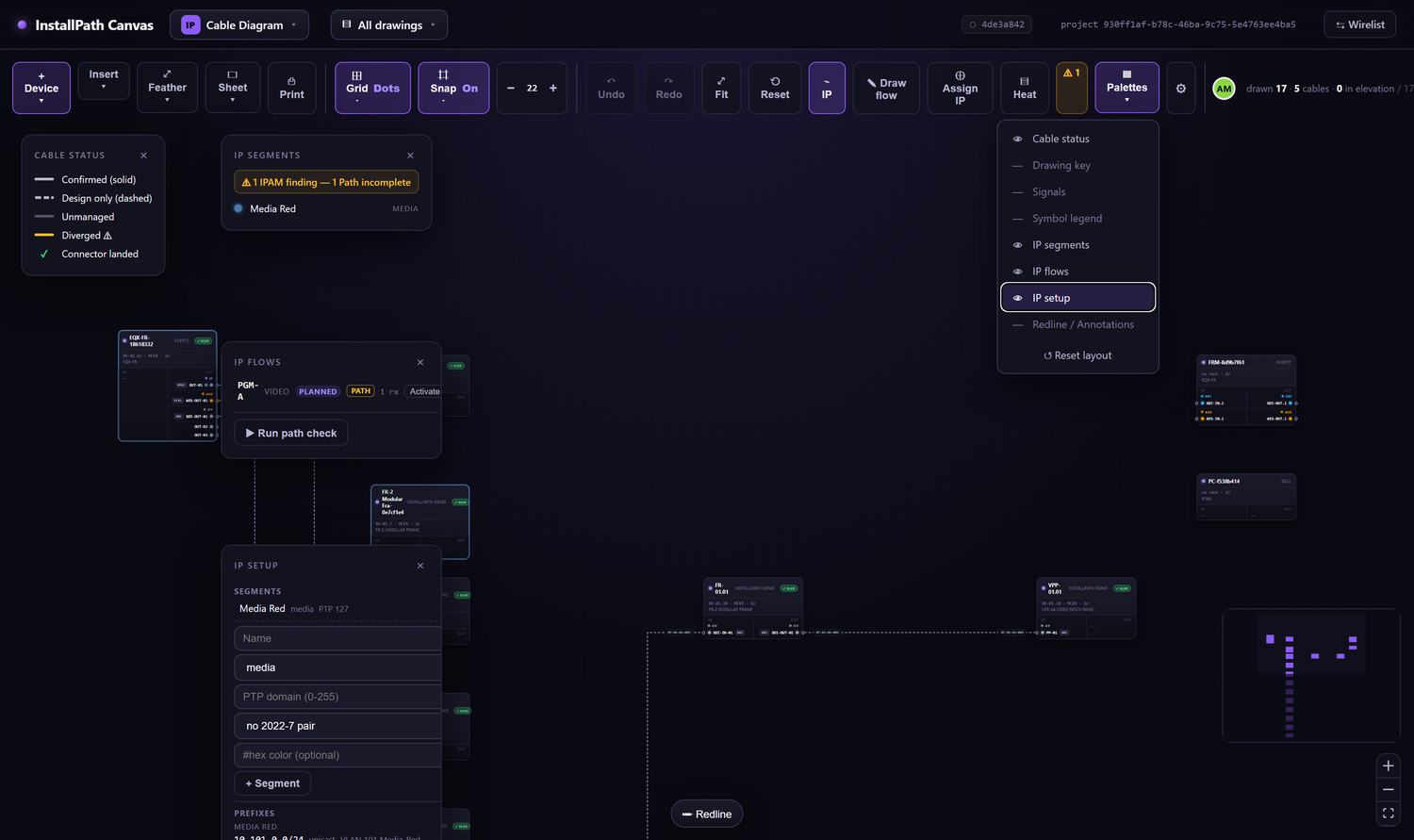
| Field | Values | Notes |
|---|---|---|
| Name | 1–64 characters | Required |
| Kind | media · control · mgmt | Separates the media network from control and management |
| PTP domain | 0–255 | Optional — the ST 2059-2 domain this segment runs |
| ST 2022-7 pair | another segment | Optional — marks this as one leg of a redundant pair |
| Colour | #hex | Optional — drives the tint on the drawing |
3. Add a VLAN
Optional, but worth doing before prefixes so you can attach the prefix to its VLAN in one pass. A VID is 1–4094 and can be tied to a segment. Once it exists, the inventory shows it per port — so a VLAN mismatch shows up in the same table as the address, rather than in a separate spreadsheet.
4. Create the prefixes
A prefix is a CIDR block inside a segment, and its role decides what it is allowed to hand out.
| Role | Hands out | To | Offered when addressing a port |
|---|---|---|---|
unicast | Host addresses | Device ports | Yes |
multicast_pool | Group addresses | Flows | No — deliberately excluded |
A group address belongs to a flow, not to a port. Offering one when you are addressing a port would produce an allocation that immediately disappears from the row you clicked, so Canvas leaves it out.
5. Name a multicast pool
The Multicast pools section stays collapsed to a single line until a
multicast_pool-role prefix exists. Once it does, the form appears and you can
name a pool against it. Flows draw their group addresses from the pool rather
than from a raw CIDR, which is what keeps group allocation auditable.
6. Put addresses on ports
Two ways, suited to different jobs.
On the drawing — for a run of ports
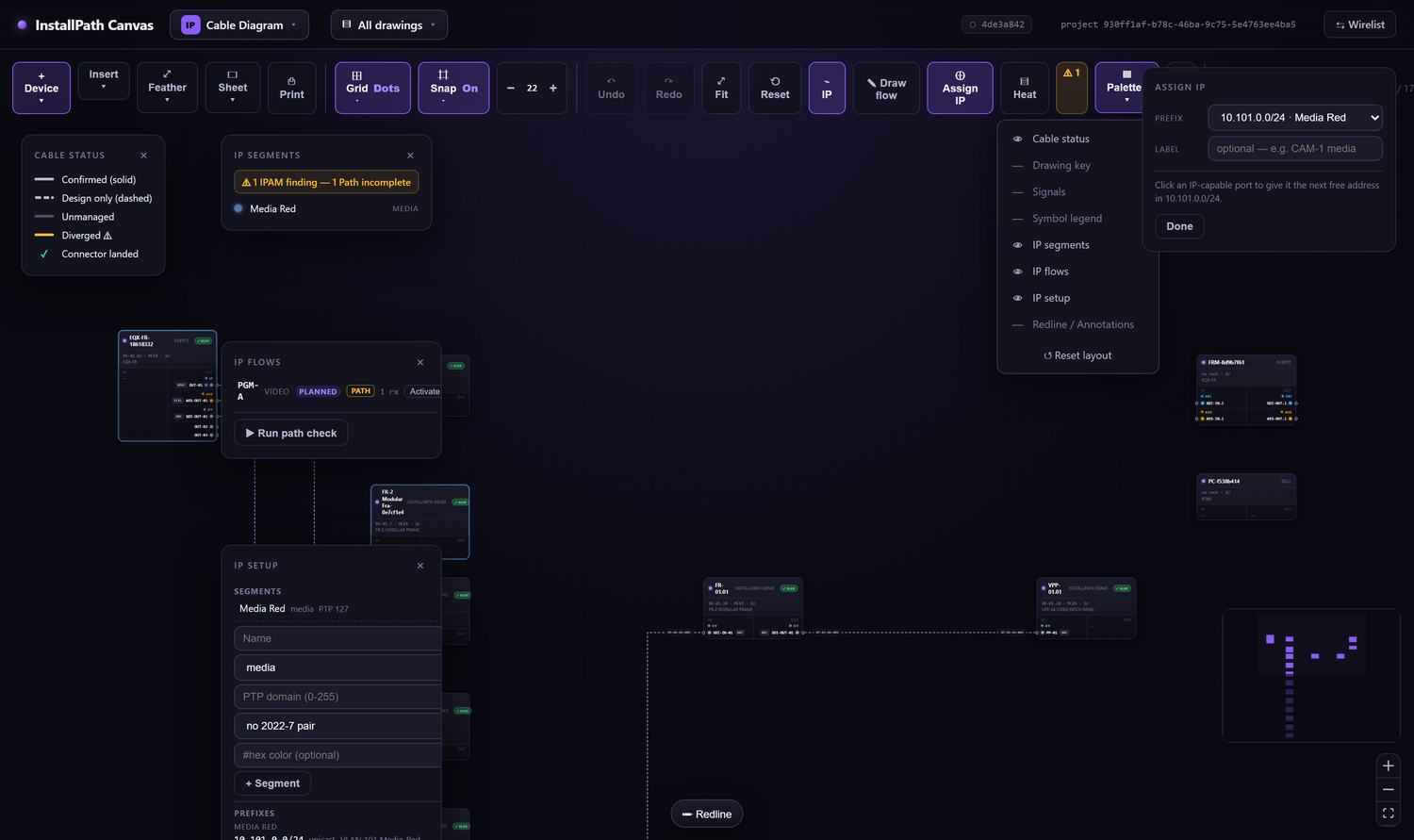
Click Assign IP. What happens next depends on how many prefixes exist, and all three cases are deliberate.
| Prefixes | Behaviour |
|---|---|
| 0 | Refuses, and names the next step |
| 1 | Arms immediately — picking the only option would be ceremony |
| 2 or more | Opens disarmed, so nothing is allocated out of a prefix nobody chose |
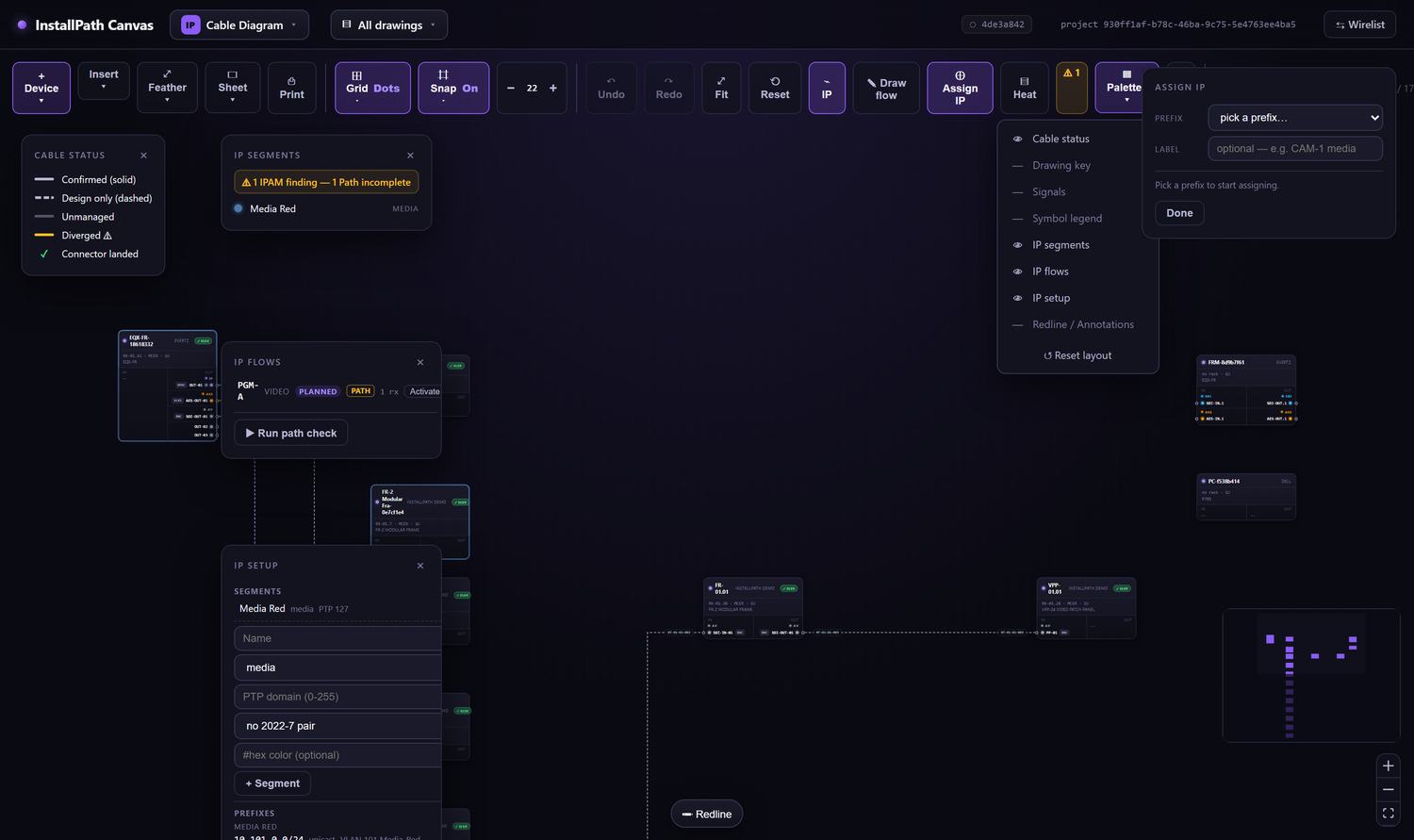
Pick the prefix, optionally set a label, then click IP-capable ports on the drawing. Each click takes the next free address and the same label — which is the whole point when you are addressing a frame.
In the inventory — for one port you went looking for
Hover the row: an Assign button appears in the address cell and opens a prefix picker inline. Save takes the next free address. A bound row shows Release instead, which takes the address off the port but keeps the address itself.

7. Read the inventory
The table is the audit surface. The facets across the top count as well as filter, so you can see the shape of the job before touching anything.
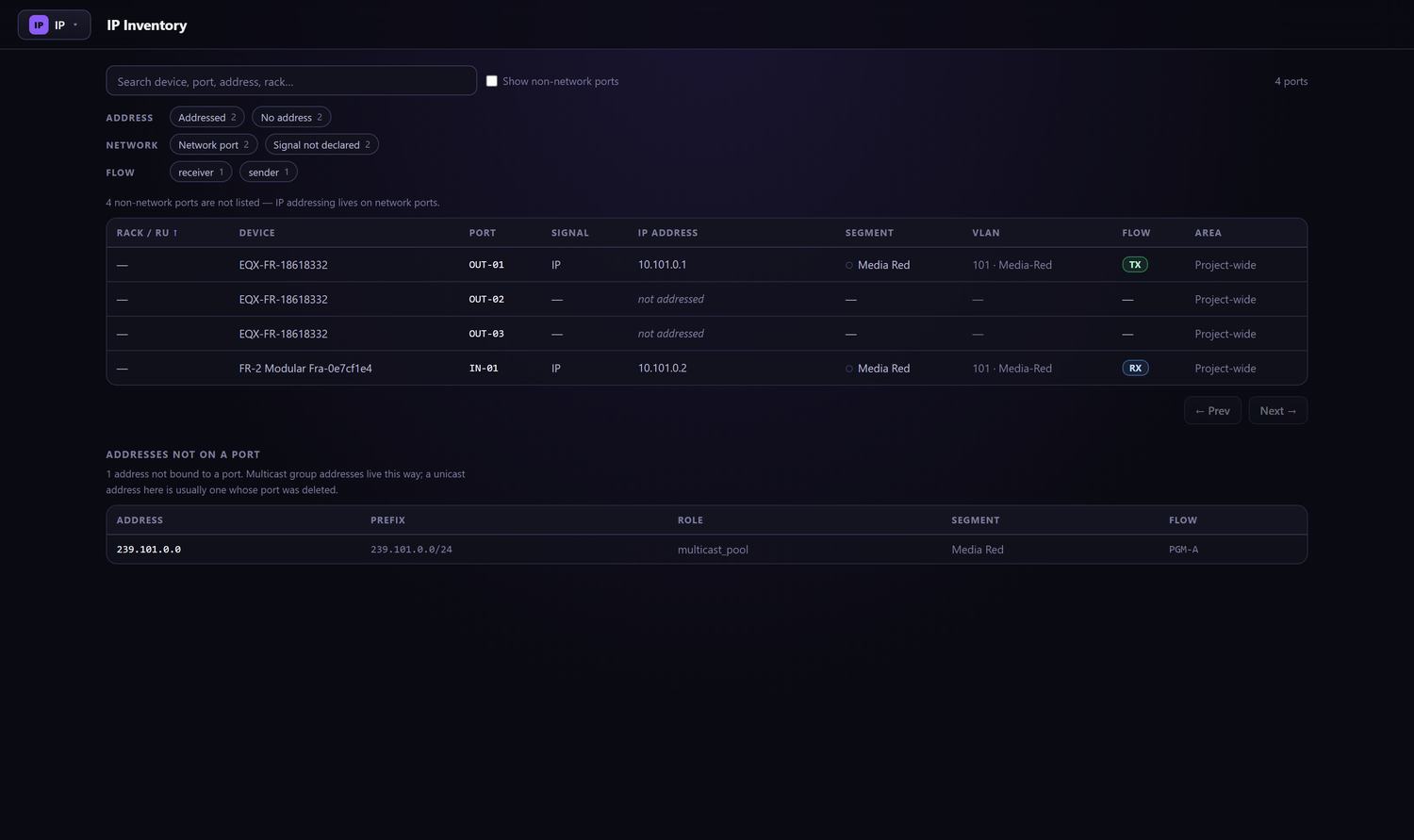
| Control | What it does |
|---|---|
| Search | Device, port, address or rack in one box |
| Address facet | Addressed / No address, with live counts |
| Network facet | Network port / Signal not declared |
| Show non-network ports | Reveals the withheld rows |
| Columns | Rack / RU, Device, Port, Signal, IP address, Segment, VLAN, Flow, Area |
8. Describe a flow
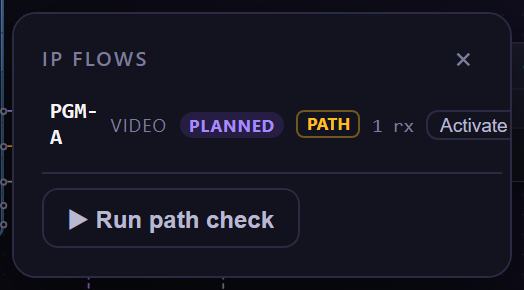
A flow is one sender port, a group address from a pool, a bandwidth, a UDP port, and any number of receiver ports. Click Draw flow, then click the sender port and each receiver in turn — Esc cancels.
Choosing an essence fills in the bandwidth and UDP port from a preset, so the oversubscription maths stays consistent across a project instead of being retyped per flow.
| Essence | Bandwidth | UDP port | Typical ST 2110 carriage |
|---|---|---|---|
video | 2 703 000 000 bps | 5004 | ST 2110-20 uncompressed video |
audio | 4 915 200 bps | 5004 | ST 2110-30 / -31 PCM and AES3 |
anc | 2 000 000 bps | 5004 | ST 2110-40 ancillary data |
data | 100 000 000 bps | 5004 | ST 2110-41 / -43 metadata and timed text |
A new flow is born in state planned and is activated explicitly. The flow also
carries an ST 2022-7 group and a twin, so a redundant pair is one object with two
legs rather than two unrelated flows.
9. Run the path check
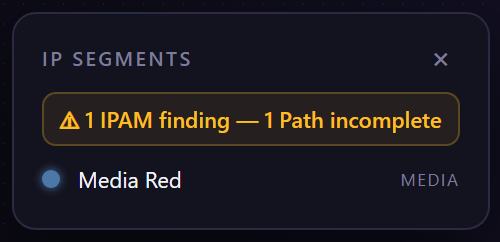
Run path check traces every flow from sender to each receiver across the cabling you have actually drawn, and recomputes the findings. It is one idempotent pass that both opens and closes findings, so running it twice changes nothing.
| Finding | Raised when | Closes when |
|---|---|---|
| Path incomplete | A flow has receivers that cannot be reached across drawn cabling | The cabling completes the path |
| Link oversubscribed | Subscribed bandwidth on a cable exceeds its capacity | Flows move, or capacity changes |
| Port unclassified | An address was bound to a port with no declared signal | The port’s signal is declared |
Heat tints every cable by subscribed ÷ capacity, so an oversubscribed link is visible on the plant rather than buried in a report. A traced flow path draws over the heat.
Six things worth knowing first
- The Assign button is hover-only. An unaddressed row looks inert until the pointer is over it. Nothing is broken.
- A row can be un-assignable, and the table says why — not a network port, or network status unknown when no verdict came back at all.
- Multicast prefixes never appear in the port picker. If a new block is missing from the dropdown, check its role.
- Assign IP with no prefixes refuses rather than opening, and the message names the next step.
- The label is sticky while it is set.
- Hidden rows are counted, not silently dropped. If a project looks empty, read the line under the facets before concluding the import failed.
ST2110-40 ancillary data, -41 fast metadata and
-43 timed text are network signals: they can be addressed and
carried on flows like video and audio. As of Engineering Standards revision 0H
they also have their own signal-flow sheet, drawing type letter X,
instead of sharing the network sheet.
Something unclear or out of date? Tell us and we will fix it.